


We recommend completing a Factory Data Reset prior to mailing your device, rest assured that all personal data is wiped as part of the inspection process once it arrives.
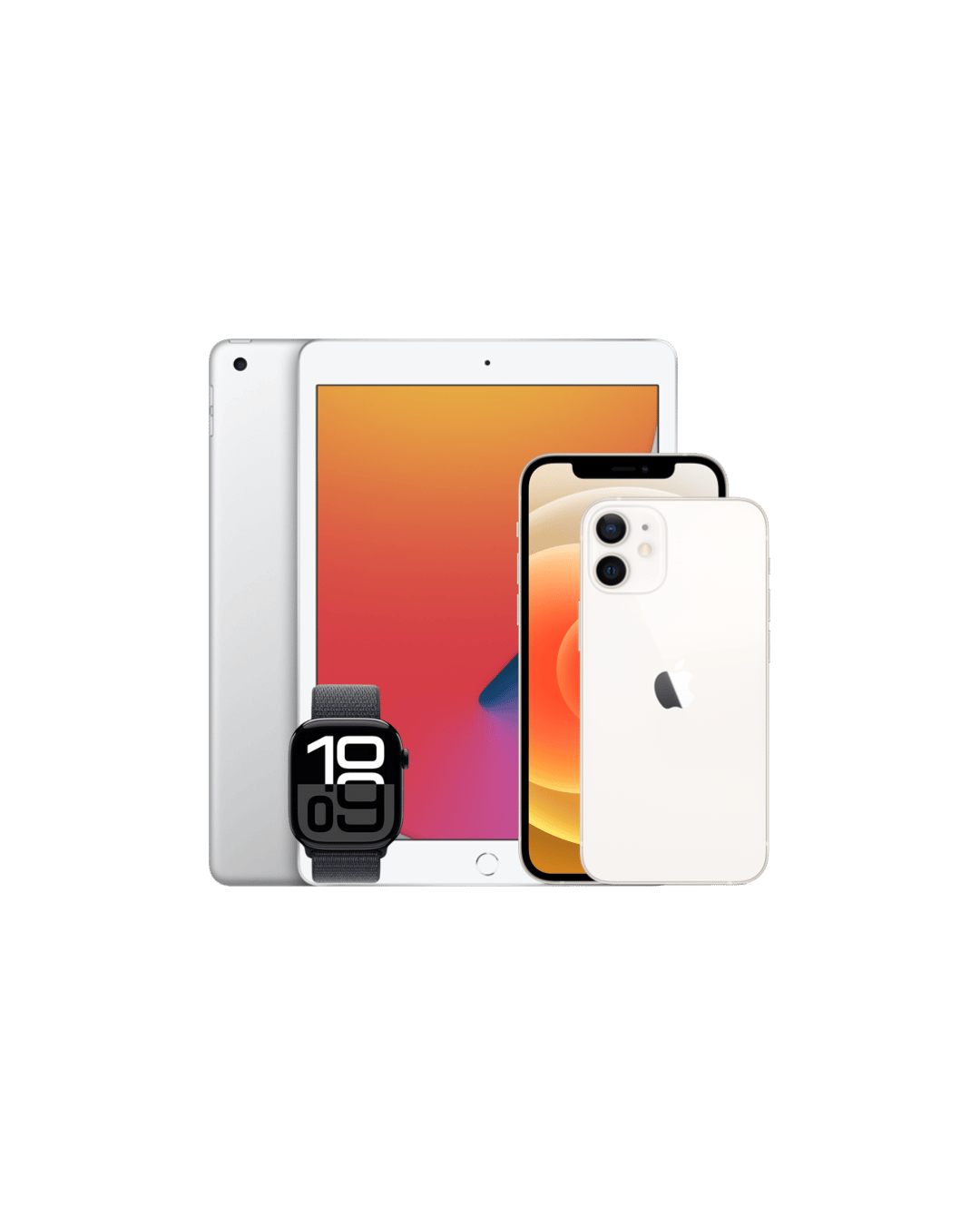
How to factory reset your iPhone, iPad, or iPod touch
Erasing your device’s data and restoring it to factory settings is an essential step before selling, trading, or giving away your device. Follow these steps to ensure your personal information is safely removed.
Step 1: Back Up Your Device
Before you begin, it’s crucial to back up your device. This ensures that you can restore your data later if needed.
-
Why Back Up? Backing up your data means you won't lose important information like contacts, photos, or documents.
-
How to Back Up: Use iCloud or connect your device to your computer and use iTunes (on Windows) or Finder (on Mac) to back up your data.
Step 2: Erase All Content and Settings
Now that your data is safely backed up, follow these steps to erase your device:
-
Navigate to Settings: Tap on Settings General Transfer or Reset [Device].
-
Select Erase All Content and Settings: This option will completely erase your device’s data and settings, restoring it to factory condition.
Step 3: Enter Your Passcode or Apple ID Password
For security purposes, you’ll be prompted to enter your passcode or Apple ID password.
Forgot Your Passcode or Apple ID? No worries! You can recover them using the following links:
Step 4: Confirm Erasure
If your device has an eSIM, you will be asked whether you want to erase it as well. If you choose to erase your eSIM, you may need to contact your carrier to reactivate your cellular plan.
eSIM Consideration: Erasing the eSIM removes your cellular plan details, so make sure you’re prepared to reactivate your plan if needed.
Step 5: Wait for the Process to Complete
The erasure process may take a few minutes. Once complete, your device will restart as if it were brand new.
How to Factory Reset my Samsung Device?
Step 1. Go to Settings and select General management
Step 2. Select Reset.
Step 3. Select Factory data reset.
Step 4. After confirming the Factory data reset details, tap Reset.
Step 5. Tap Delete all.
All data stored on your device will be deleted.
Note:
-
A Factory data reset will restore your device to default factory settings and may delete or reset your personal files such as Downloads, Ringtone, Images, Applications, Contacts, etc. located in your internal storage device.
-
For devices that support external memory, a Factory data reset will not delete data saved to an SD card. As such, when selling or transferring ownership of your device, make sure to disconnect your account and remove your SD card. You can delete all data on your SD card by navigating to Settings > Battery and device care > Storage > SD card > Format > Format SD card.
Unpair and erase your Apple Watch
Before you start
-
If you have the iPhone that your Apple Watch is paired with, you should follow the steps to unpair your Apple Watch. This removes Activation Lock from your Apple Watch as well as erasing all its content and settings. If you don't have the paired iPhone, you can erase your Apple Watch, but Activation Lock will remain.
-
If you're using your Apple Watch with a transit card in the Wallet app, remove your transit card from your Apple Watch before you unpair.
-
Apple Watch doesn't have a physical SIM slot or reset button — the holes in your Apple Watch case are there to allow sound to and from the microphone and speakers, and to allow water-depth measurement on Apple Watch Ultra. To avoid damage, don't insert any object into the holes in your Apple Watch case.
How to unpair and erase your Apple Watch if you have your iPhone
-
Keep your Apple Watch and iPhone close together as you unpair them.
-
Open the Apple Watch app on your iPhone.
-
Go to the My Watch tab and tap All Watches.
-
Tap the info button next to the watch that you want to unpair.


-
Tap Unpair Apple Watch.

-
Tap Unpair [your Apple Watch name].
-
For GPS + Cellular models, choose whether to keep or remove your cellular plan.
-
If you want to pair your Apple Watch and iPhone again, keep your plan.
-
If you don't want to pair your Apple Watch and iPhone again, remove your plan. If you aren't going to pair with a different watch or iPhone, you might need to contact your carrier to cancel your cellular subscription.
-
-
Type your Apple ID password to disable Activation Lock, then tap Unpair.
Before erasing all content and settings on your Apple Watch, your iPhone creates a new backup of your Apple Watch. You can use the backup to restore a new Apple Watch. After your Apple Watch unpairs, you'll see the Start Pairing message.
Now you can set up your Apple Watch again or turn it off if you're selling it or giving it away.

How to erase your Apple Watch if you don't have your iPhone
-
On your Apple Watch, tap Settings > General > Reset > Erase All Content and Settings.

-
Type your password if prompted.
-
For GPS + Cellular models, choose to keep or remove your cellular plan.
-
If you want to pair your Apple Watch and iPhone again, keep your plan.
-
If you don't want to pair your Apple Watch and iPhone again, remove your plan. If you aren't going to pair with a different watch or iPhone, you might need to contact your carrier to cancel your cellular subscription.
-
-
Tap Erase All to confirm. This resets your Apple Watch to the factory settings.
Now you can set up your Apple Watch again. You'll need the Apple ID and password associated with the watch turn off Activation Lock.
Erasing all content and settings erases all media, data, and settings from your Apple Watch, but it does not remove Activation Lock. To remove Activation Lock, unpair the watch first. Before your watch is erased, a backup of its contents is created on your iPhone.
What happens to my personal data on my devices?
Turn off Find My on your iPhone or other devices
How to turn off Find My on your iPhone or iPad
-
Open the Settings app.
-
Tap your name > Find My.
-
Tap Find My [Device], then tap to turn it off.
-
Enter your Apple ID password.
-
Tap Turn Off.
To remove your Apple Watch from Find My, unpair it from your iPhone.
How to turn off Find My on your Mac
-
Choose the Apple menu > System Settings. In earlier versions of macOS, choose the Apple menu > System Preferences.
-
Click your name (or Apple ID), then click iCloud.
-
Under Apps Using iCloud, click Show All, then click Find My. In earlier versions of macOS, scroll down and click Find My.
-
Click Turn Off.
What happens when you turn off Find My
Disabling Find My includes stopping location tracking and Activation Lock, a feature that's designed to prevent anyone else from using your device. This allows us to process your Trade In.
Can't Access your Phone or have already shipped your device?
-
Go to icloud.com/find, then sign in to your Apple Account (if necessary).
Tip: To sign in without entering a two-factor authentication code, select
 at the bottom of the window.
 -
In the list of devices, select the device you want to remove.
If you already selected a device, select All Devices or
 to return to the list.
 -
Select Remove This Device.
Do I need to include accessories when selling my device?
No, accessories like cases, phone or tablet chargers, and screen protectors are not required. If you choose to include them, we will recycle them responsibly as part of our sustainability efforts.
For devices such as Macs, laptops, desktops, Apple TVs, smartwatches, and smart home products, a charger is required for proper testing. If a charger is not included, processing may take up to 7 additional business days and your offer may be adjusted.
Please note that cases, covers, and screen protectors sent with your device cannot be returned if the device is sent back to you.
If you have any questions about including accessories, feel free to contact us. We are here to help.
Can I sell my device if it is engraved?
Yes, you can sell an engraved device. However, due to the permanent and personalized nature of engravings, these items are automatically graded as Poor during our evaluation process.
If you have any questions or need additional information, feel free to contact us. We’re happy to assist you.
Can I sell a device that has been reported lost or stolen?
No, we are unable to accept any device that has been reported as lost or stolen. All devices must be legally owned by you and must not be on a carrier blacklist or locked to a Google or iCloud account including a MDM (business).
Before sending in your device, please ensure it is fully unlocked and ready for resale. This helps avoid delays in processing and payment.
If you are unsure about your device’s eligibility, feel free to contact us. We’re happy to help.
Will I receive a higher payout if I include accessories?
We cannot offer a higher payout for phone accessories, such as cases, screen protectors, or chargers.
If you’re selling Macs, laptops, desktops, Apple TVs, smart watches, or smart home products, we require a charger to properly test the device. Devices received without a charger may take up to 7 additional business days to process and may receive a revised offer.
If you have any questions, feel free to contact us for further assistance!
How can I determine if my phone is unlocked?
We offer higher payouts for unlocked phones, so checking your device’s status before submitting your order is important.
The most accurate way to find out if your phone is unlocked is by contacting your carrier or service provider. They can confirm your device’s status and let you know if it qualifies for unlocking. In many cases, carriers will unlock your phone at no cost if the device is paid off and not under contract.
If your phone is currently locked, ask your provider if it can be unlocked. Once it is, you can submit your device as unlocked to receive the highest possible payout.
You are always welcome to contact us if you are unsure or need help figuring this out.
How to Check If an iPhone Is Unlocked
You can also check your iPhone’s unlock status right from the device:
-
Open Settings
-
Tap General
-
Tap About
-
Scroll to Carrier Lock
-
If it says No SIM restrictions, your iPhone is unlocked.
-
If it says SIM Locked or Carrier Locked, your iPhone is still tied to a specific carrier.
Tip: If you have a SIM card from another carrier, you can insert it to see if the phone connects to the new network. If it does, the phone is likely unlocked.
How to Check If an Android Phone Is Unlocked
Steps can vary slightly by brand, but here’s a general method:
-
Go to Settings
-
Tap Connections or Network & Internet
-
Tap Mobile Network or Cellular Networks
-
Tap Network Operators or Carrier
-
If multiple carrier names appear and you are able to select one manually, your phone is likely unlocked
You can also try inserting a SIM card from a different carrier. If the phone connects and makes a call or uses data, it is probably unlocked.
Still Not Sure?
If you are unsure or need help determining your phone’s status, reach out to your carrier first. You can also contact our team for assistance. We are happy to help guide you through it.
What is screen burn?
Despite the term “burn-in,” there is no actual heat or burning involved. Instead, screen burn refers to permanent discoloration or “ghost images” on a display caused by static images remaining on the screen for prolonged periods. These issues result in visible outlines, patterns, or color patches that persist even when the display changes.
Common Types of LCD Issues
-
Screen Burn / Ghost Imaging
-
Residual outlines of static images, such as app icons, navigation buttons, keyboards, or status bars.
-
Most noticeable against plain backgrounds (e.g., white or gray).
-
-
LCD Tint or Hue
-
Discoloration across the screen, often appearing pink, yellow, or green in certain areas.
-
May result from screen aging or poor-quality third-party screen replacements (non-OEM screens).
-
-
Major LCD Blemishes
-
Dead pixels: Small, non-functioning spots on the display.
-
Uneven brightness or fading of colors.
How Does Screen Burn Happen?
Screen burn occurs when parts of the screen display unchanging content for long periods. For example:
• Navigation bars and keyboards that remain static.
• Status bars or icons in the same place.
Additionally, low-quality screen replacements or manufacturing defects can also contribute to LCD issues, particularly tints, hues, or ghost imaging.
-
How to Identify Screen Burn Before Sending a Device
To avoid unexpected revised offers during inspection, follow these steps to check for screen burn or other LCD issues:
-
Use a Bright White Background
-
Display a plain, bright white image on the screen (use apps or websites that generate solid white screens).
-
Observe the display for discoloration, ghost images, or patches.
-
-
Look for Common Signs
-
Persistent outlines or faded areas (e.g., keyboard, icons, or navigation bar).
-
Areas tinted pink, yellow, or green.
-
Pixel imperfections (dead pixels, dark spots).
-
-
Test the Entire Screen
-
Check at full brightness to make discoloration more visible.
-
Look at the screen from different angles for any subtle issues.
-
Examples of Screen Burn
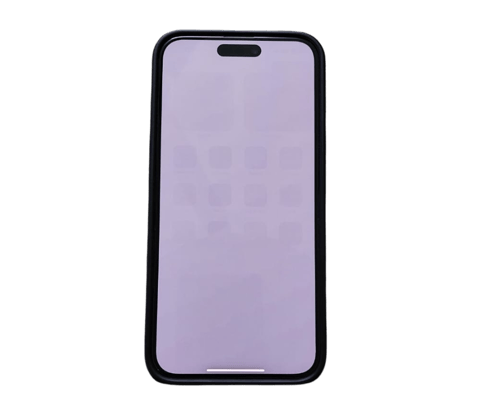
The Example above is an iPhone 15 Pro with Screen Burn, You can see while the device is on a white background that the app icons, outline is burned into the screen.
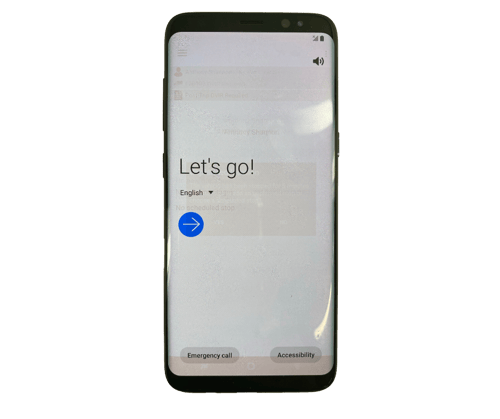
The Example above is a Galaxy S9 with Screen Burn, You can see while the device is on a the setup screen that a darker imprint and outline is burned into the screen.
How can I speed up my payment?
1. Package Your Device Securely
Ensure your device is packaged well to avoid any damage during transit. Use protective materials like bubble wrap or padded envelopes.
2. Affix the Label Correctly
Make sure the shipping label provided during the process is securely attached to your package.
3. Erase Your Device
Before sending your device, remove all personal data and perform a factory reset. This step protects your privacy and ensures the device is ready for processing.
4. Disable Stolen Device Protection Features
If your device has features like Find My iPhone or other theft protection settings enabled, disable them before shipping. This allows us to process the device without delays.
5. Optional: Provide Serial Number or IMEI
On the confirmation screen during your transaction, you’ll have the option to provide the serial number or IMEI (if it’s a smartphone).
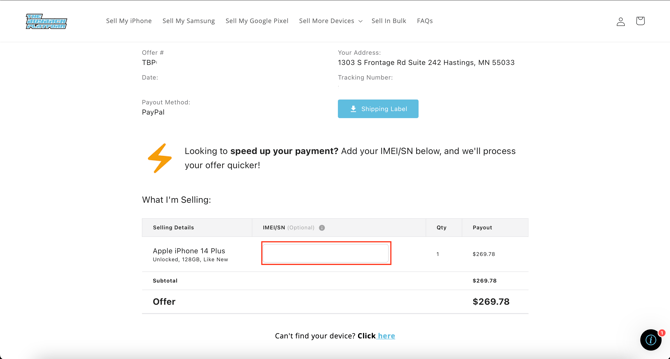
• While this is optional and doesn’t impact the processing time, it helps us pre-screen your device ahead of time, potentially speeding up the overall process.
By following these steps, you can help us process your device efficiently and get your payment to you as quickly as possible!
How long is my offer valid when selling my device?
Once you complete your request to sell your device, your quote is valid for 15 days. Please ensure you ship your devices within this 15-day period to take advantage of your offer.
What to expect after placing your order?
Once you place your order, you will be greeted with the "Ready to get paid" confirmation page. See the example below:
.png?width=484&height=727&name=Example+Order+Confirmation+Page+-+The+BuyBack+Platform%20(2).png)
Now it’s time to package your device securely in a box of your choosing, remember, the safer, the better!
Click on the "Shipping Label" button (as shown in the example above). Print off your shipping label and order packing slip, and securely affix them to your package.
If you are no longer on the order confirmation screen, check the email address you used to place your order, your shipping kit will be there, ready for you, alternatively you can grab your shipping kit from your order portal.
If you need any further assistance, feel free to contact us for more information.
Am I obligated to sell if I place an order?
No, you are not obligated to send in your device if you change your mind. However, we do appreciate it if you let us know by visiting your customer portal and clicking the "Cancel Trade-In" button.
What if my offer is revised? Can I get my device sent back?
If your device is not in the condition described during the quoting process, we will send you a revised quote via email based on its actual condition.
If you choose not to accept the new quote, we will return your device free of charge.
Lost, Stolen, or Anti-Theft Locked Devices
Devices that are placed on hold due to a Google/FRP, Samsung/FRP, or iCloud lock (including Apple Business Manager or Apple School Manager MDM), or that have been reported as lost or stolen, will incur a $10 return shipping charge if they need to be sent back. This only applies to locked or blocked devices.
If you have any other questions or need further clarification, feel free to contact us for assistance.
Can I add multiple items to the same order?
Absolutely! We encourage you to include multiple items in a single order. Doing so helps streamline our process and enables us to issue your payment faster.
Creating separate orders or using the wrong shipping labels may cause confusion and delays in processing, resulting in longer wait times for payment. To prevent this, we recommend finding all the items you wish to sell on our website or app first. This helps ensure accurate records and clarity on your expected payment.
If you have any questions or need assistance, please don’t hesitate to contact us. We're here to help!